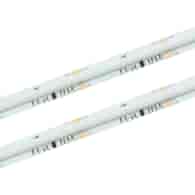
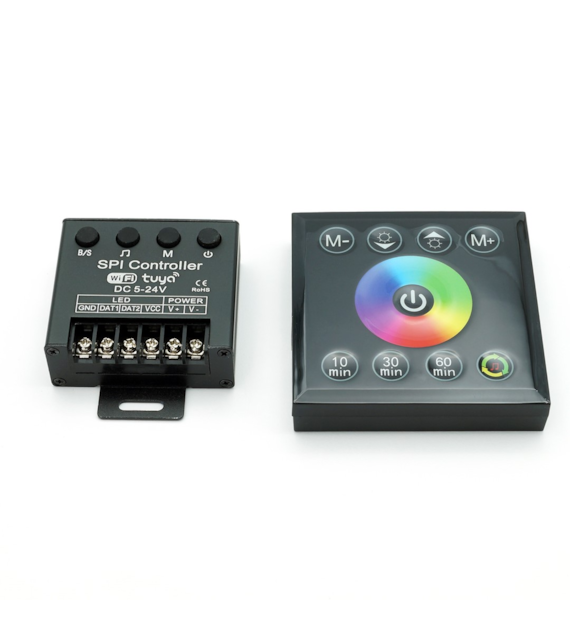
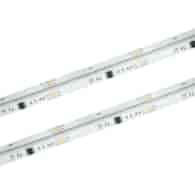
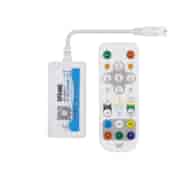
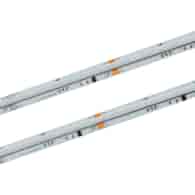
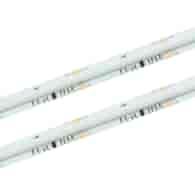
WiFi TUYA+ digital-music RGB LED controller RF panel
Input voltage:
12-24V DC
<
Number of control points:
200 integrated circuits
Integrated circuits:
WS2811
Communication method with the controller:
RF panel: (included)
WiFi: TUYA SMART App
Range:
Panel: about 15m
TUYA SMART App: Control from anywhere in the world using WiFi technology
Remote power supply:
2x AAA
Maximum current of the controller:
24A
Degree of protection:
IP20
Maximum power of the controller:
288W at 12V; 576W at 24V
Supports LED strips:
Compatibility with WS2811 LED circuits
Operating temperature:
from -10°C to 60°C
Connection:
screw terminals
Dimensions:
panel - 85 x 85 x 18 mm
controller - 64 x 58 x 25 mm
Warranty:
2 years
Certificates:
CE, RoHS
Application user manual
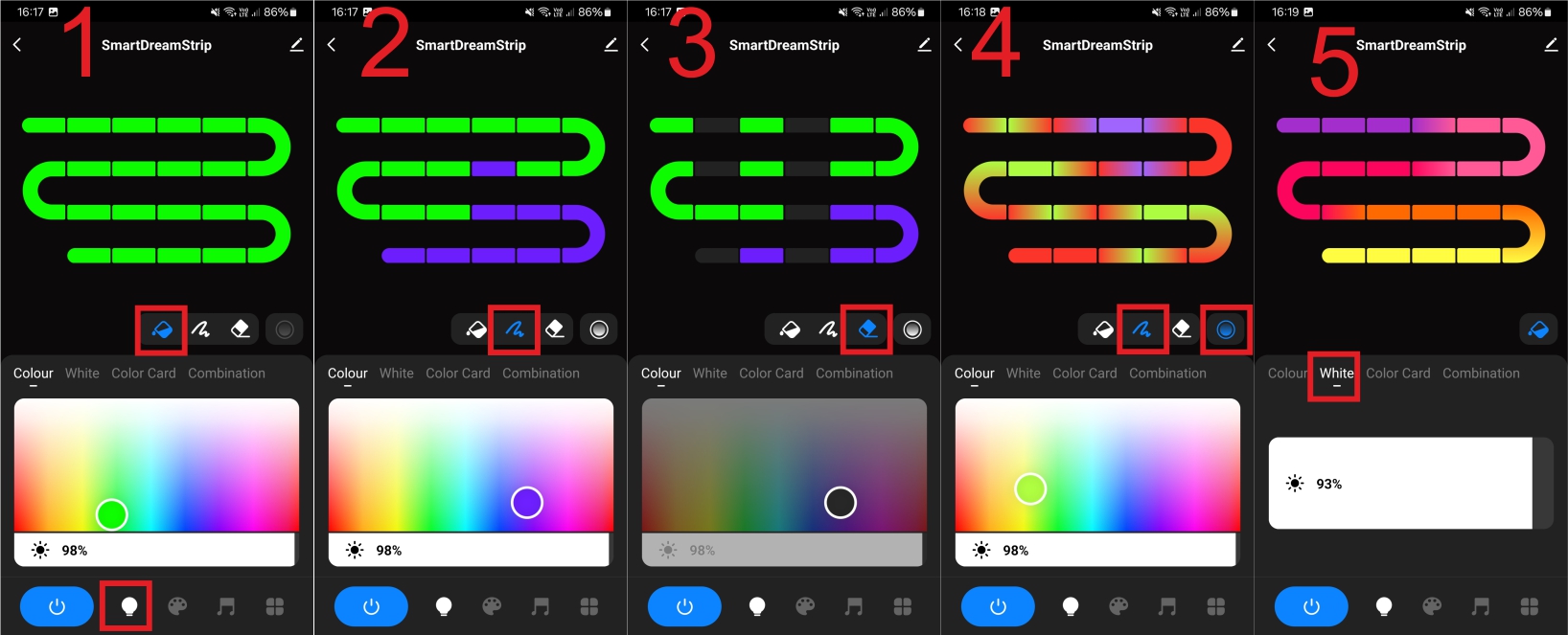
1. Static color Color the entire light strip using the fill tool.
2. Use the drawing tool to create patterns by coloring a single pixel.
3. Use the eraser tool to remove color from a single pixel.
4. The gradient tool can blend colors together.
5. White color the entire light strip will light up white.
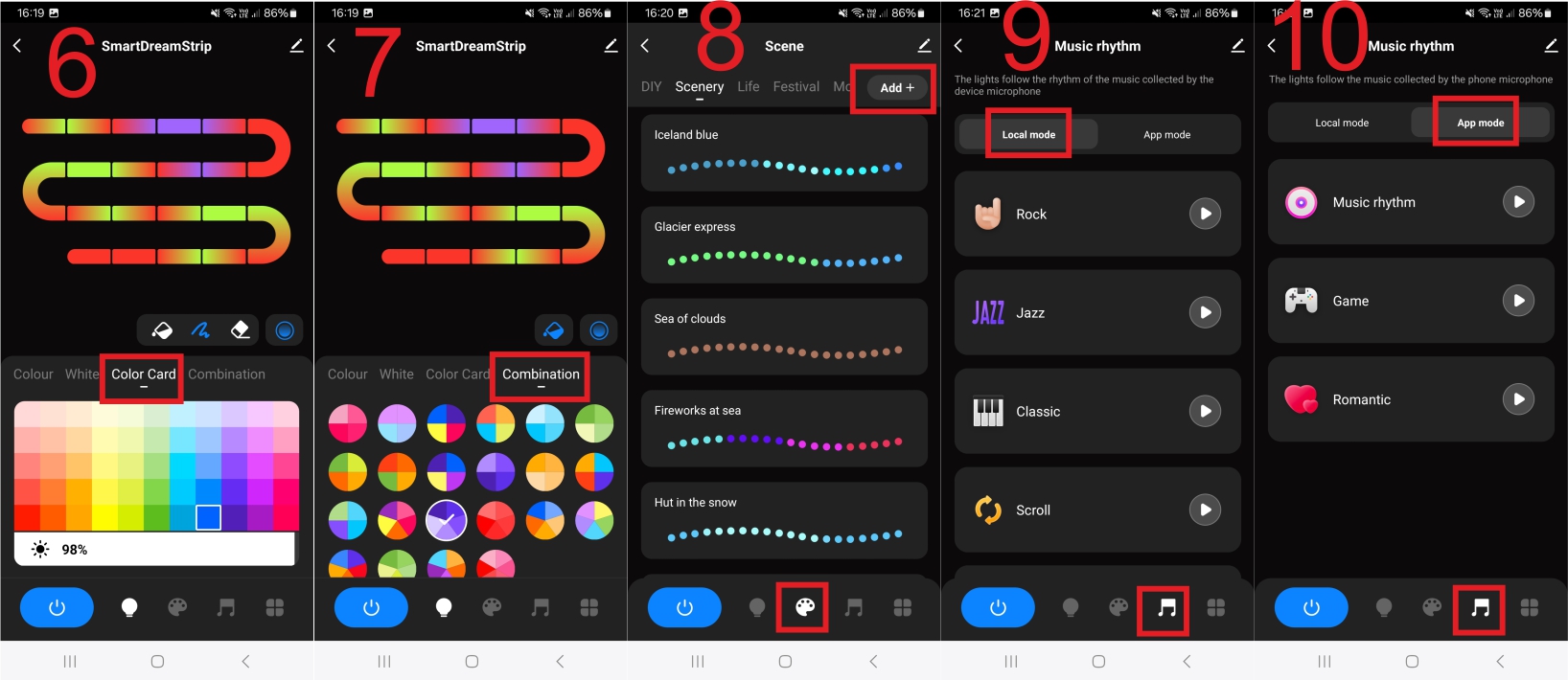
6. The color card provides a simpler set of color samples.
7. The combination tab consists of ready-made color patterns.
8. Dynamic color — choose from ready-made color patterns with motion effects.
By pressing the ADD+ button — create your own light effects. Custom DIY color.
9. Local music mode – uses the built-in microphone.
10. Music app mode — synchronizes with sounds played on the phone.
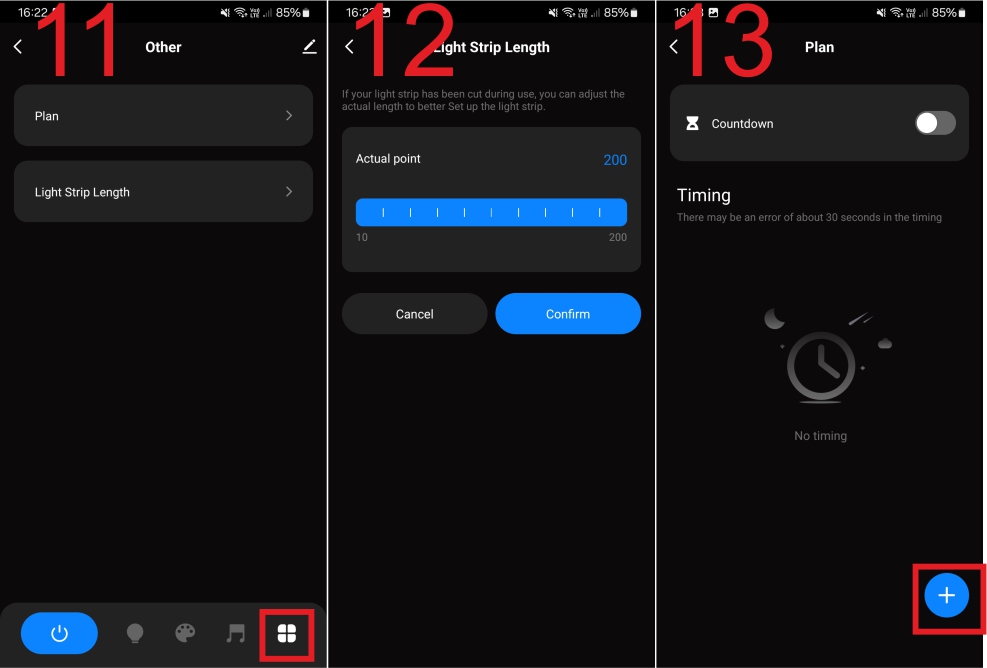
11. Other menu — Plan and length of the light strip.
12. Length of the light strip
13. Plan - Countdown is a timer to set the time when the light strip should turn off.
Schedules can be set by pressing the + symbol in the bottom right corner of the plan screen.
Incorrectly displayed colors.
If there is an incorrect color swap, meaning after setting red a different color appears, e.g., blue or green.
The device should be updated to version 1.0.12.
Follow the instructions.
1. Then we turn on the device from the panel.
2. On the panel, hold the "10 min" button until the color sequence (RGB) changes at the beginning of the strip.
3. Check if the colors on the panel match the color on the strip.
If everything is correct, we can now use the device.
4. If the colors are still not correct, we repeat point 2.